
How to Show Toast Message in Flow

Screen Flows are not only about collecting information from users. They are also about guiding users through a process and giving them clear feedback along the way. Sometimes, you may want to let users know that an action was completed or simply display a message. Until now, showing a toast message from a Flow usually required an unofficial or custom Flow action. However, in the Summer ’26 release, Salesforce introduced a standard Show Toast Message action for Flow.
Show Toast Message Action
Starting with the Summer ’26 release, you can use the Show Toast Message action to display a toast message in a Screen Flow.
Here is how to configure the action.
1- Add the Show Toast Message action to your Screen Flow.
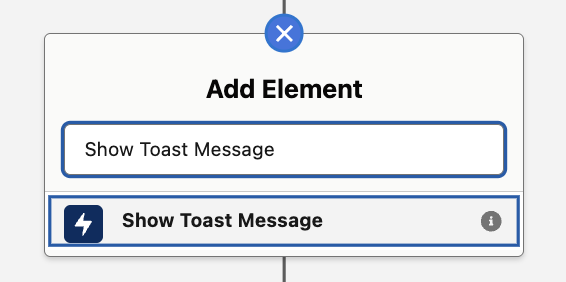
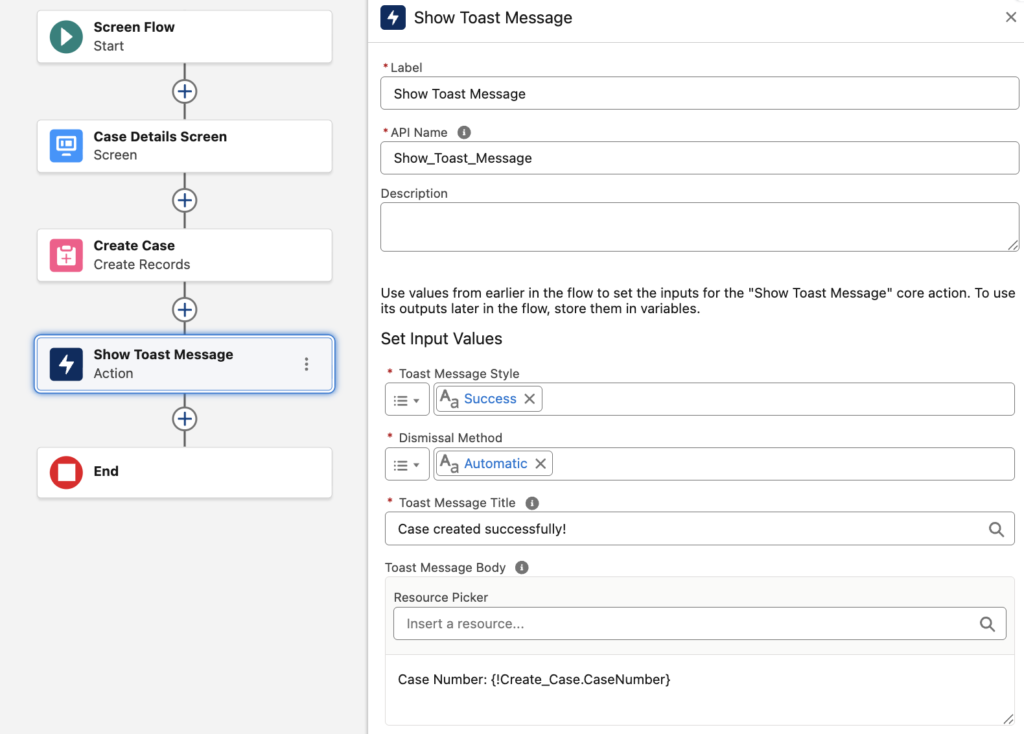
2- Configure the action by setting its input values. This action includes several inputs for displaying the message.
- Toast Message Style: Sets the style of the toast message, including its color and icon. Available options are Success, Information, Warning, and Error.
- Dismissal Method: Defines whether the message disappears automatically or the user must dismiss it manually. Available options are Manual and Automatic.
- Toast Message Title: The title of the message that you want to display.
- Toast Message Body: The body text of the message. This input parameter is optional.
How to Display a Link in the Toast Message
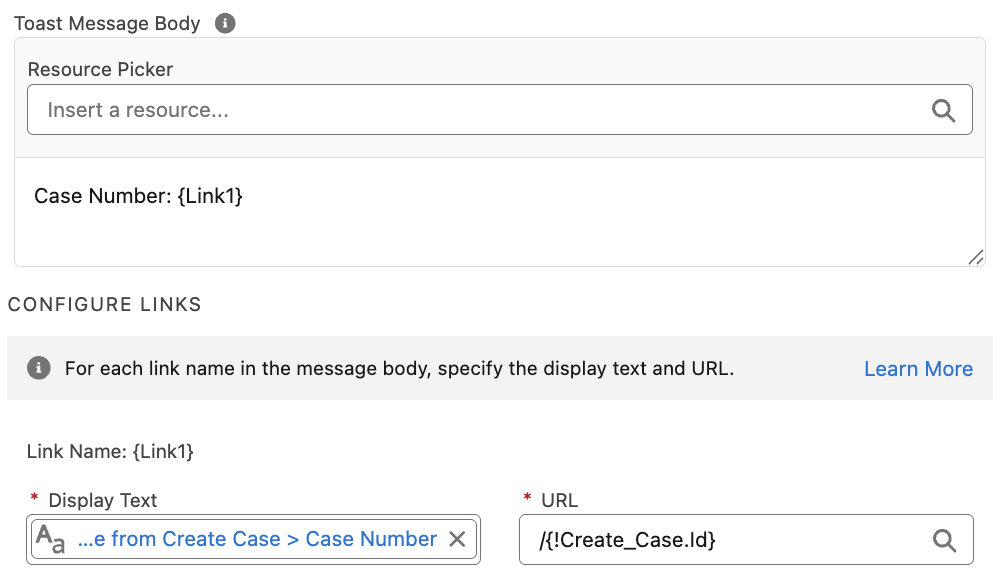
In some cases, you may want to display a link in the message body. For example, you may want to make the message clickable and take the user to the newly created record.
To add a link to the message body, put curly brackets {} around the link’s name. For example, {Link1}.
After you add a variable in this format, the link configuration section appears. Each link name must have a unique value. Then, specify the display text and URL for the link.
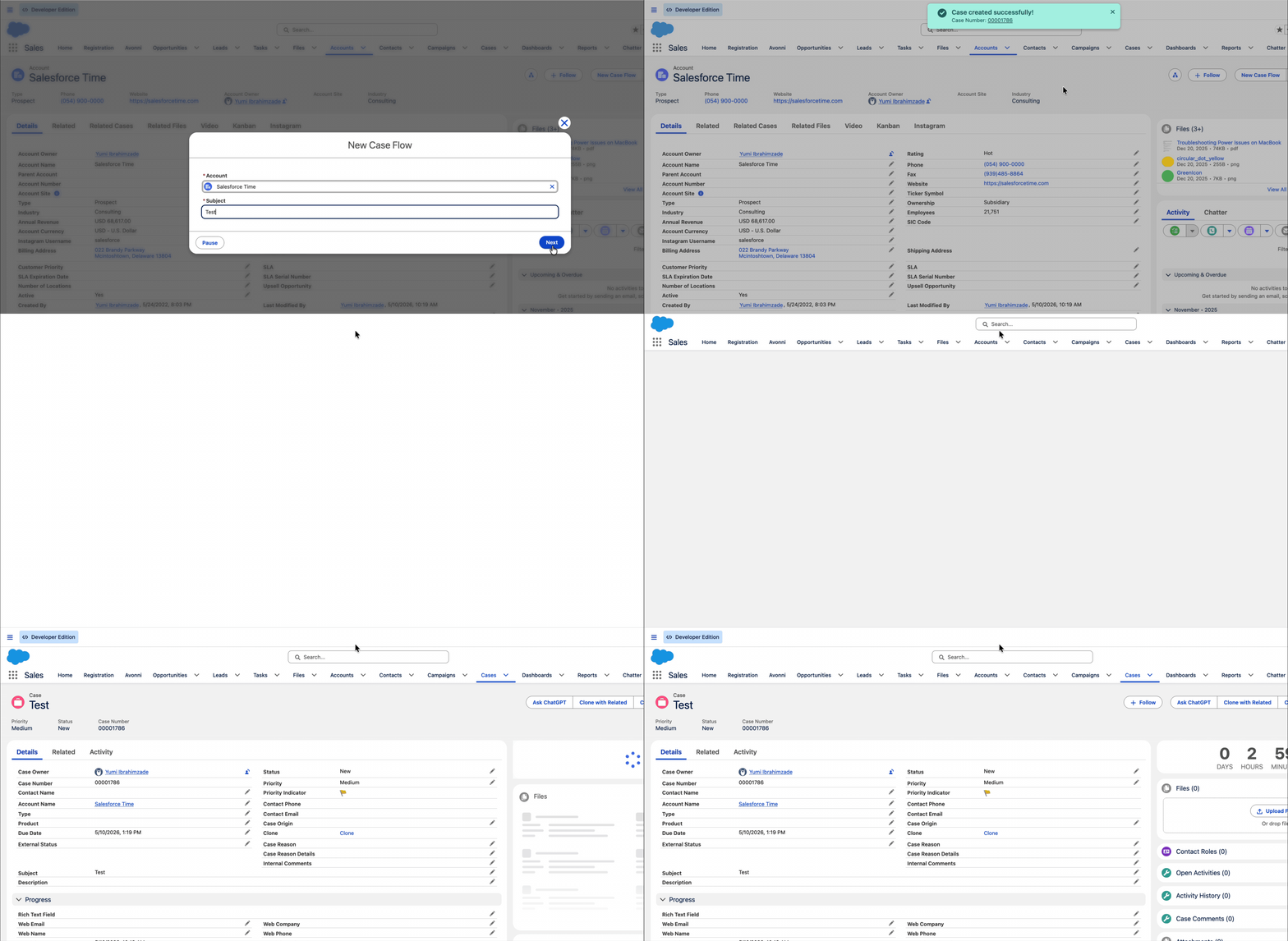
When the user clicks the link, the record opens in a new tab.
The post How to Show Toast Message in Flow appeared first on Salesforce Time.

