
How to Prototype Salesforce Screen Flows and Lightning Record Pages Before Opening a Sandbox

How to Prototype Salesforce Screen Flows and Lightning Record Pages Before Opening a Sandbox
Every Salesforce Admin, Business Analyst, and Functional Consultant has lived through this scenario:
You finish a 60-minute discovery workshop. The business sponsor says, “We just need a simple approval process and a few extra fields on the Opportunity and Case pages.”
So you spend two days in a Developer Sandbox creating custom fields, configuring Dynamic Forms visibility rules, wiring up a multi-screen Flow, and placing components on a Lightning Record Page. Then you hop on the playback call to demo your build, and within three minutes the stakeholder says:
- “Wait, why is this a separate Screen Flow button? We thought those fields would sit right under the Path.”
- “Actually, if the Deal Margin is under 65%, Finance needs a justification text area before they can click Submit.”
- “Can we move this whole process to the Quote object instead?”
Now you have to unwind validation rules, delete half-used custom fields that are already referenced in subflows, and rebuild the layout from scratch.
After 15+ years delivering Salesforce projects, I have found that most Sandbox rework comes down to a single gap: stakeholders cannot picture how a written Jira user story translates into a real Salesforce Lightning page or Screen Flow until they see it on screen.
In this guide, we will walk through a practical four-step framework for prototyping Salesforce Screen Flows and Lightning Record Pages before you touch a Sandbox, so the first build in Flow Builder is far closer to the last.
Why Traditional Wireframing Tools Fall Short for Salesforce
When teams try to prototype before building in a sandbox, they typically reach for one of three tools:
| Approach | Why Teams Try It | Where It Breaks Down in Salesforce |
|---|---|---|
| 1. Written User Stories Only (Jira / Word) | Fast to write after a call. | Stakeholders sign off on text without realizing how crowded a 3-column layout looks or how Path stages interact with required fields. |
| 2. Generic Design Canvas (Figma / Miro / PowerPoint) | Visual freedom. | Non-designers spend hours drawing boxes that do not follow Salesforce Lightning Design System (SLDS) constraints, leading to UI designs that need custom LWC instead of standard Dynamic Forms or Screen Flows. |
| 3. Prototyping Directly in a Sandbox | Uses real Salesforce metadata. | Creating dummy objects, picklists, record types, and flows just to test an idea pollutes the sandbox and takes days instead of minutes. |
To avoid both “impossible-to-build Figma art” and “premature Sandbox debt,” your pre-build prototype needs to stay strictly inside native Salesforce Lightning Design System (SLDS) boundaries.
Step 1: Map the Process Swimlane Before Choosing Between Dynamic Forms and Screen Flows
One of the most common mistakes in Flow design is opening Flow Builder before agreeing on who owns each handoff and when a guided Screen Flow is actually needed versus a standard Lightning Path with Dynamic Forms.
Start by mapping the process using Universal Process Notation (UPN), keeping each step tied to a clear actor (Role/Queue), an action verb, and a measurable outcome:
- Trigger & Intake: Which object starts the process (e.g., Lead, Opportunity, Case, or Quote), and what is the entry status?
- Decision Gateways: Which threshold routes the record to a different lane (for example, Blended Discount > 20% or Case Priority = P1 Critical)?
- Screen vs. Record Surface: Does the user need a step-by-step wizard (Screen Flow) to collect transient inputs, or do they need persistent fields on the record with conditional visibility (Dynamic Forms)?
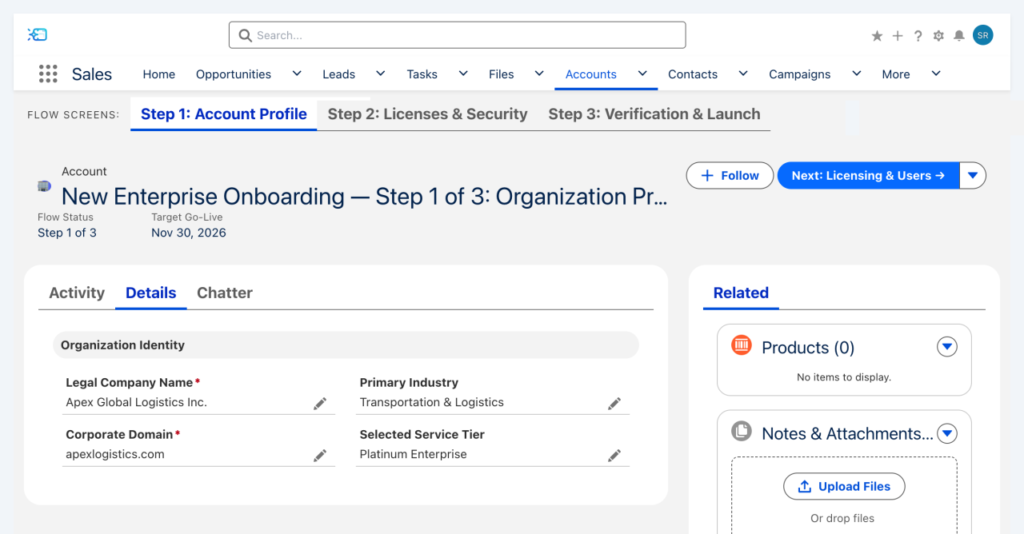
Rule of Thumb: Screen Flow vs. Dynamic Forms
- Use Dynamic Forms + Path Guidance when users are updating fields on a single record over time and only need 2–3 conditional fields to appear when a specific picklist value or Path stage is selected.
- Use a Guided Screen Flow when the user must complete a multi-step wizard, create or update related child records in one transaction, or verify external or calculated data before advancing the stage.
Step 2: Prototype the Lightning Record Page Within Real SLDS Constraints
Once the process steps are clear, mock up the Lightning Record Page using authentic SLDS components rather than freeform rectangles. Every stakeholder workshop goes faster when the screen in front of them looks like the real Salesforce page they use every day.
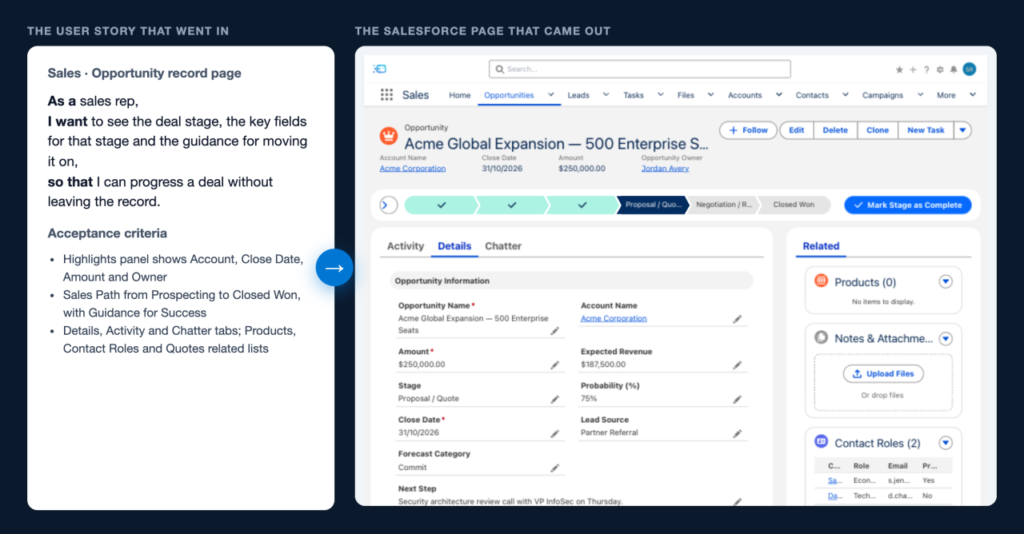
During the live workshop, walk stakeholders through four specific zones of the Lightning page from top to bottom:
- Highlights Panel (Top 4–5 Key Fields + Action Buttons): Ask the business: “If a manager looks at this record for 5 seconds, which 4 metrics must be in the top banner, and which 3 buttons belong in the primary action bar?”
- Lightning Path & Key Fields for Success: Click through each stage of the Path live on the call. For every stage, confirm the exact Guidance for Success coaching text so users know what is required to advance.
- Record Detail Sections & Columns: Group fields into logical 2-column sections (e.g., Commercial Terms, Triage & Routing, Compliance Verification) and flag which fields are read-only, required, or formula-driven.
- Right-Hand Sidebar & Related Lists: Verify which child objects (such as QuoteLineItem, CaseMilestone, or OpportunityContactRole) need to be visible without scrolling, and which 3–4 columns belong in each related list card.
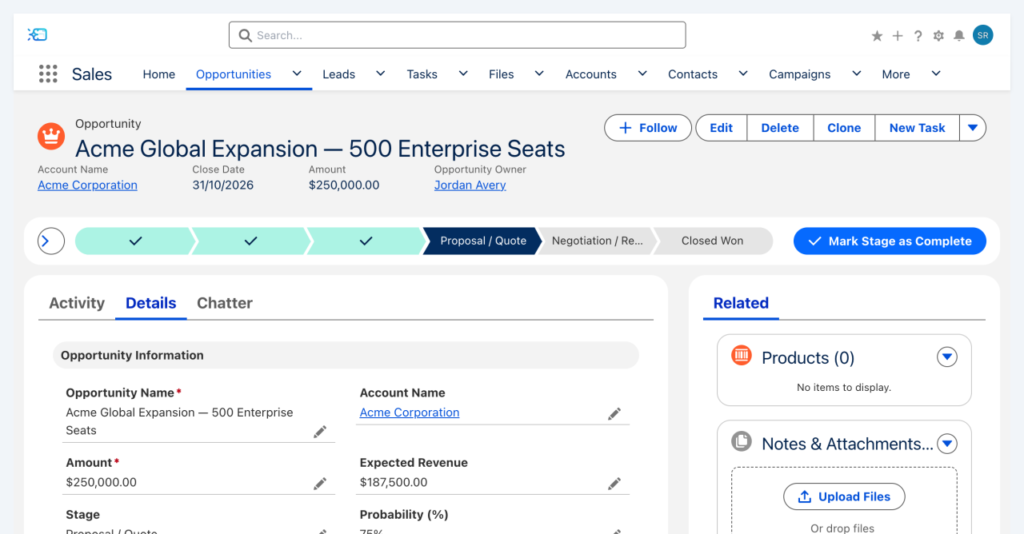
Step 3: Test Conditional Visibility and Validation Edge Cases Live in the Meeting
In almost every project, the requirements that break a Sprint are conditional visibility rules and exception paths that nobody thought to mention during discovery.
When you review a clickable SLDS prototype live on a screen-share, you can test those rules in real time by asking three questions:
- The “Negative Path” Question: “When someone selects ‘Closed Lost’ or ‘At Risk — Churn Flagged’, which dependent field should appear on the layout, and should it be mandatory?”
- The “Role / Persona” Question: “Should frontline SDRs be able to edit this field, or should it be read-only for everyone except Deal Desk and System Administrators?”
- The “Mobile / Console Density” Question: “Will agents view this in a 3-column Service Console alongside an Omni-Channel sidebar, or on a standard 2-column desktop screen?”
Step 4: Turn the Approved Prototype Directly Into a Field Data Dictionary & Gherkin Acceptance Criteria
A visual prototype gets business sign-off, but Salesforce Admins, Flow Builders, and QA testers still need an unambiguous specification to build and test against.
Before moving into your Sandbox, translate every component on the approved prototype into two structured artifacts:
1. The Field-Level Data Dictionary
List every field visible in the Highlights Panel, Record Detail sections, and Screen Flow inputs with its exact API name, data type, and visibility rule:
| Field Label | Suggested API Name | Data Type | Required / Read-Only | Conditional Visibility / Flow Rule |
|---|---|---|---|---|
| Approval Status | Approval_Status__c | Picklist | Required | Default to Draft; updated by Deal Desk Approval Flow. |
| Blended Discount (%) | Blended_Discount__c | Percent (3, 2) | Editable | Triggers Deal Desk step when > 20%. |
| Discount Justification | Discount_Justification__c | Long Text Area | Required when visible | Dynamic Forms: show only when Blended_Discount__c > 20. |
| Floor Margin (%) | Floor_Margin__c | Formula (Percent) | Read-Only | Calculated from net quote lines vs. cost schedule. |
The same dictionary works for a Service Cloud Case page. In a 3-column Service Console, every field competes for space with the Omni-Channel sidebar and the utility bar, so note where each field lives as well as when it shows:
| Field Label | Suggested API Name | Data Type | Required / Read-Only | Conditional Visibility / Flow Rule |
|---|---|---|---|---|
| Priority | Priority (standard) | Picklist | Required | Highlights Panel. P1 Critical routes the Case to the Tier 3 Incident queue and starts the SLA milestone. |
| SLA Countdown | SLA_Minutes_Remaining__c | Formula (Number) | Read-Only | Highlights Panel. Calculated from the Case Milestone target time; red when under 15 minutes. |
| Root Cause Hypothesis | Root_Cause_Hypothesis__c | Long Text Area | Required when visible | Diagnostic Overview section. Dynamic Forms: show only when Status = Escalated. |
| Escalation Reason | Escalation_Reason__c | Picklist | Required in Flow | Not on the layout. Collected by the “Escalate to Engineering” Screen Flow, which also sets Status = Escalated. |
2. Gherkin (Given / When / Then) Acceptance Criteria
Write testable Gherkin scenarios directly from your Path stages and Dynamic Forms visibility rules so Admins and QA testers know the exact pass/fail conditions for User Acceptance Testing (UAT):
| Scenario: Require Discount Justification when Blended Discount exceeds 20% Given a Sales Rep is viewing an Opportunity or Quote in the “Deal Desk Review” stage When the user enters a “Blended Discount (%)” value greater than 20% Then the “Discount Justification” field dynamically appears on the Record Detail layout And the user cannot advance the Path to “Approved & Locked” until “Discount Justification” is populated. |
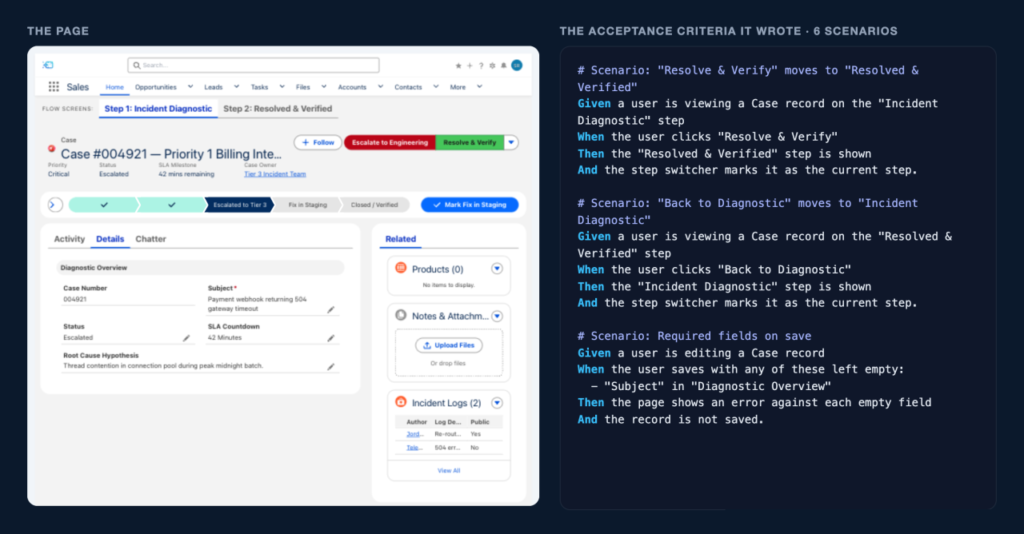
Summary Checklist: The 15-Minute Pre-Sandbox Routine
Before you create your next custom field or Screen Flow in a Sandbox, run through this quick five-point checklist with your stakeholders:
- Map the UPN Swimlane: Confirm which steps happen on the record (Dynamic Forms + Path) vs. inside a modal wizard (Screen Flow).
- Lock the Highlights Panel: Agree on the top 4–5 header metrics and primary action buttons.
- Walk the Path Stages: Confirm stage names and Guidance for Success notes live on screen.
- Trigger Conditional Fields Live: Show stakeholders exactly which fields appear on exception statuses (e.g., On Hold, At Risk, or High Discount).
- Export the Spec: Attach the Field Data Dictionary and Gherkin scenarios to the Jira ticket before starting Sandbox configuration.
Spending 15 minutes aligning on a realistic SLDS prototype during discovery can save days of Sandbox rework, keeps your org metadata clean, and turns UAT sign-off into a formality.
Sandeep Ramineni is a 15+ year Salesforce Functional Consultant and the creator of SFProto
(sfproto.com).
Connect with Sandeep on
LinkedIn.
The post How to Prototype Salesforce Screen Flows and Lightning Record Pages Before Opening a Sandbox appeared first on Salesforce Time.

