
New Flow Features of Winter ’26 Release

Salesforce’s Winter ’26 release is just around the corner! As with previous releases, it introduces exciting new features for Salesforce Flow. Take a look at what’s new in Flow for the Winter ’26 release.

1- Modern Debugging Experience
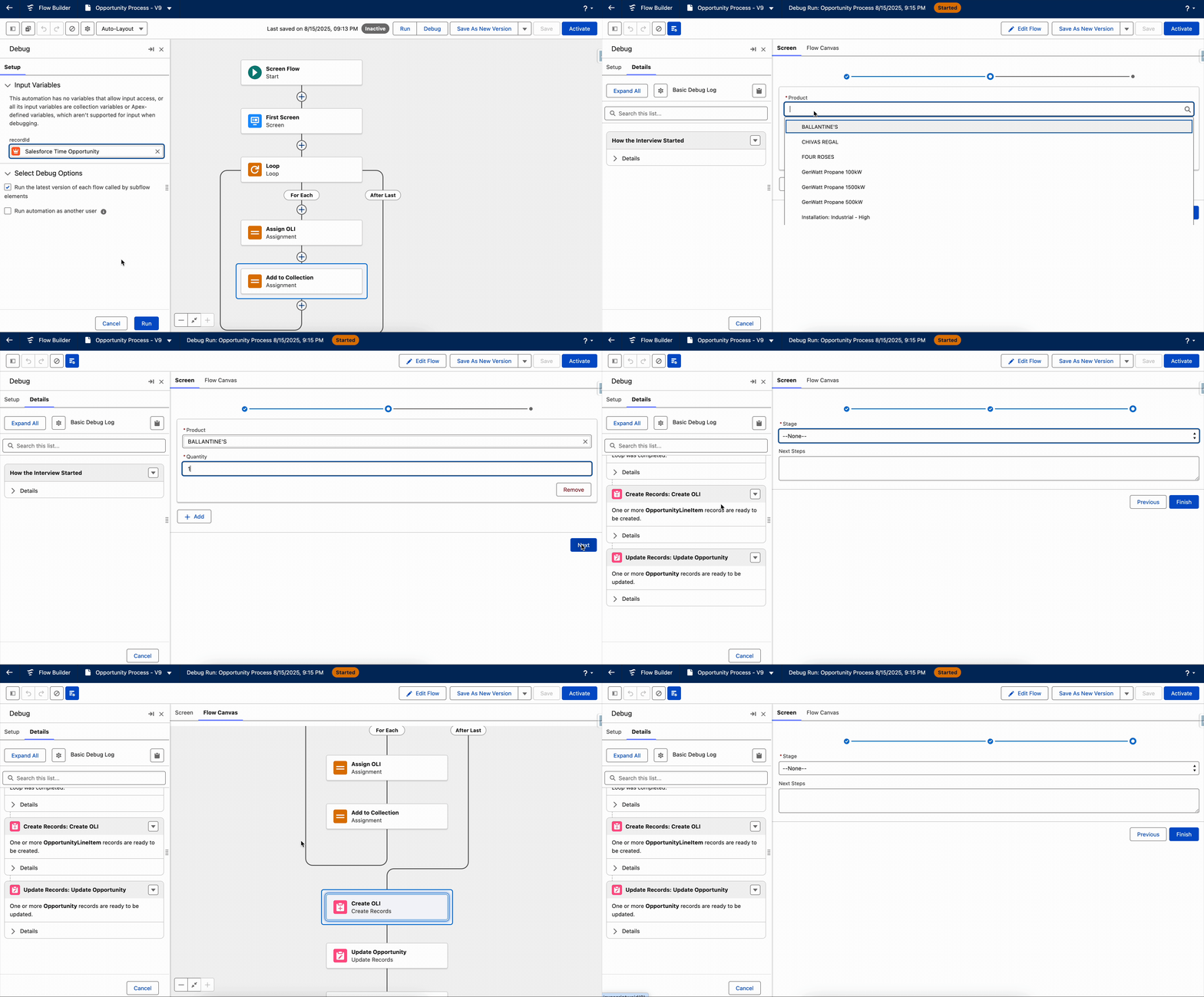
The Flow Debug Panel received a major upgrade in the Summer ’25 release. In that release, Salesforce introduced enhanced filtering, search, and improved formatting to simplify debugging for Record-Triggered, Autolaunched, and Scheduled Flows.
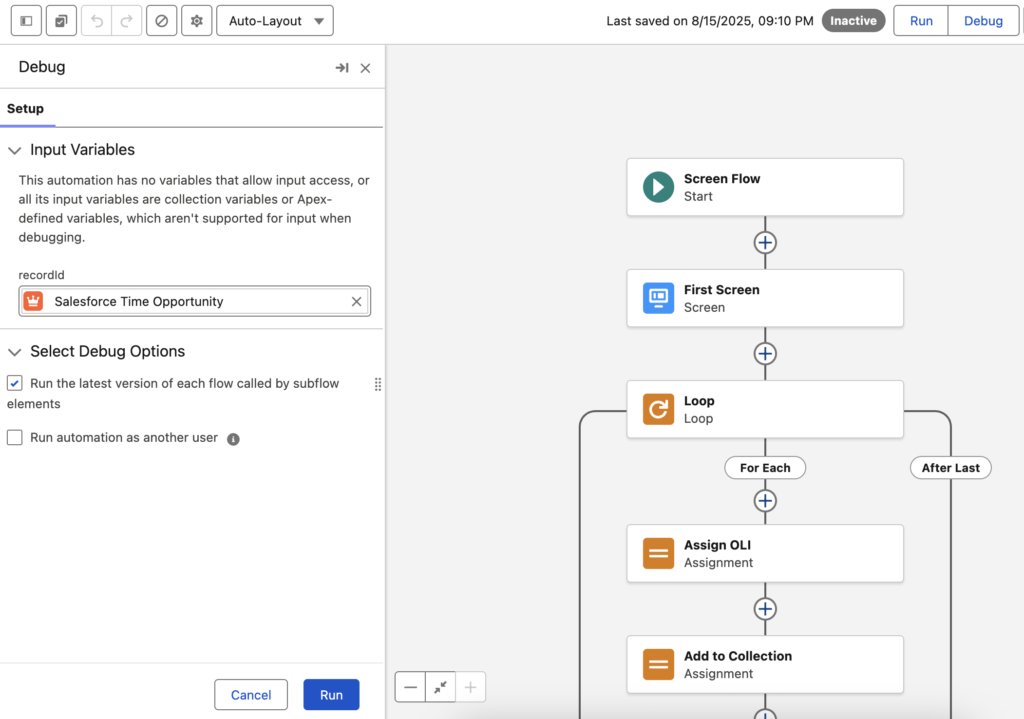
Starting in the Winter ’26 release, the modern debugging experience will now extend to Screen Flows as well.
Screen Flow Debugging
- Debug directly in Flow Builder – No need for a separate window.
- Full visibility – See all inputs and outputs for every component and screen action right on the screen.
- Quick switching – Use the new switcher to toggle between the running screen flow and the flow canvas.
- Local actions – These now execute during debugging, providing a realistic test run.
General Debugging Enhancements
- Collapsible side panel – Both the Debug setup and results are now in a collapsible side panel. For Screen Flows, you can hide debug details when you don’t need them.
- Shifted layout – The debugging interface is now on the left, letting you see debug details and element settings side by side.
- Canvas shortcuts – Every card in the debug results now includes a “View on Canvas” link to jump directly to the related element.
- Readable collections – Actions elements now show collections in a clear format, so it’s easier to understand large datasets.
2- Theme Picker in Screen Flows
In the Summer ’25 release, Salesforce introduced the Size Picker in Flow Builder. It allows you to preview how your screens will appear across different screen sizes.
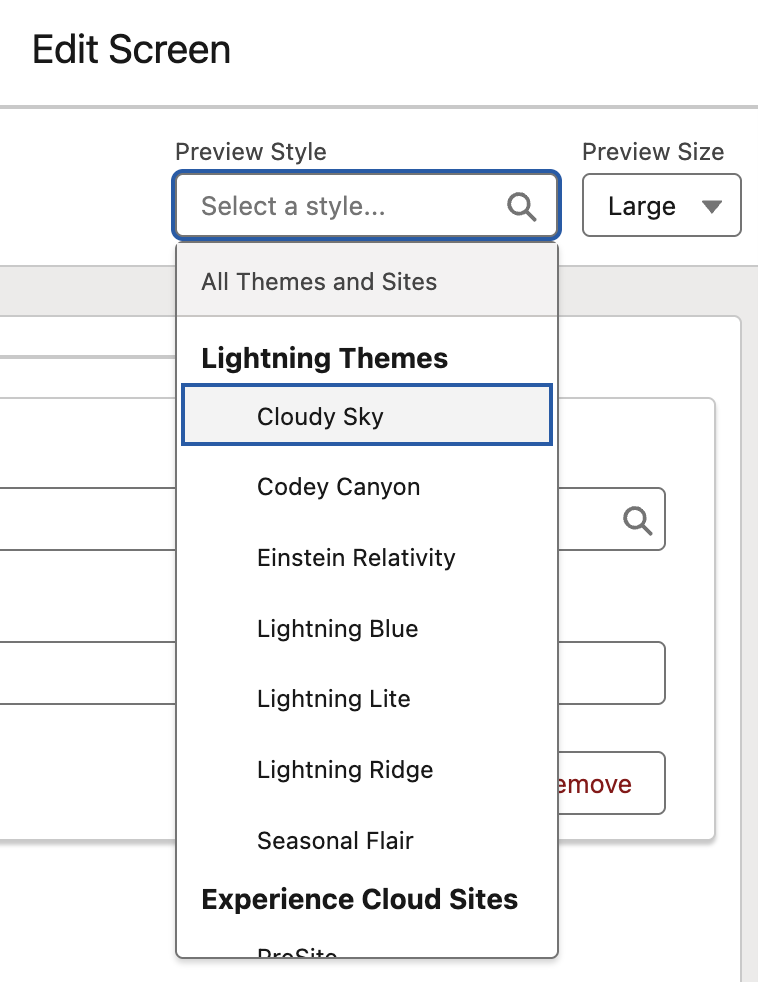
Following that, in the Winter ’26 release, Salesforce added the new Theme Picker. It lets you preview how your screen will look with a specific theme applied. For example, you can see how it appears in an Experience Cloud site, a Lightning Experience theme, or Salesforce Cosmos.
3- Apex-Defined Variable Support in Data Table
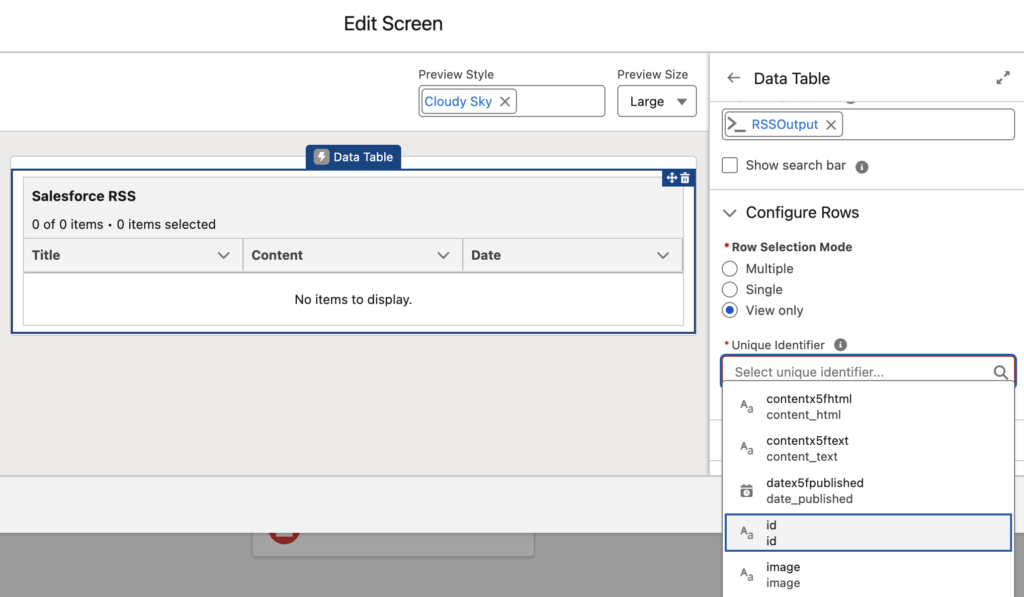
In Winter ’26, Data Table now supports Apex-Defined Variables. That means you can finally display Apex-defined collections directly inside a data table. It is perfect for HTTP callout outputs!
To uniquely identify each record, just pick a field in the new “Unique Identifier” option, and the table will handle your custom Apex objects just like standard records.
4- Flow Version Comparison
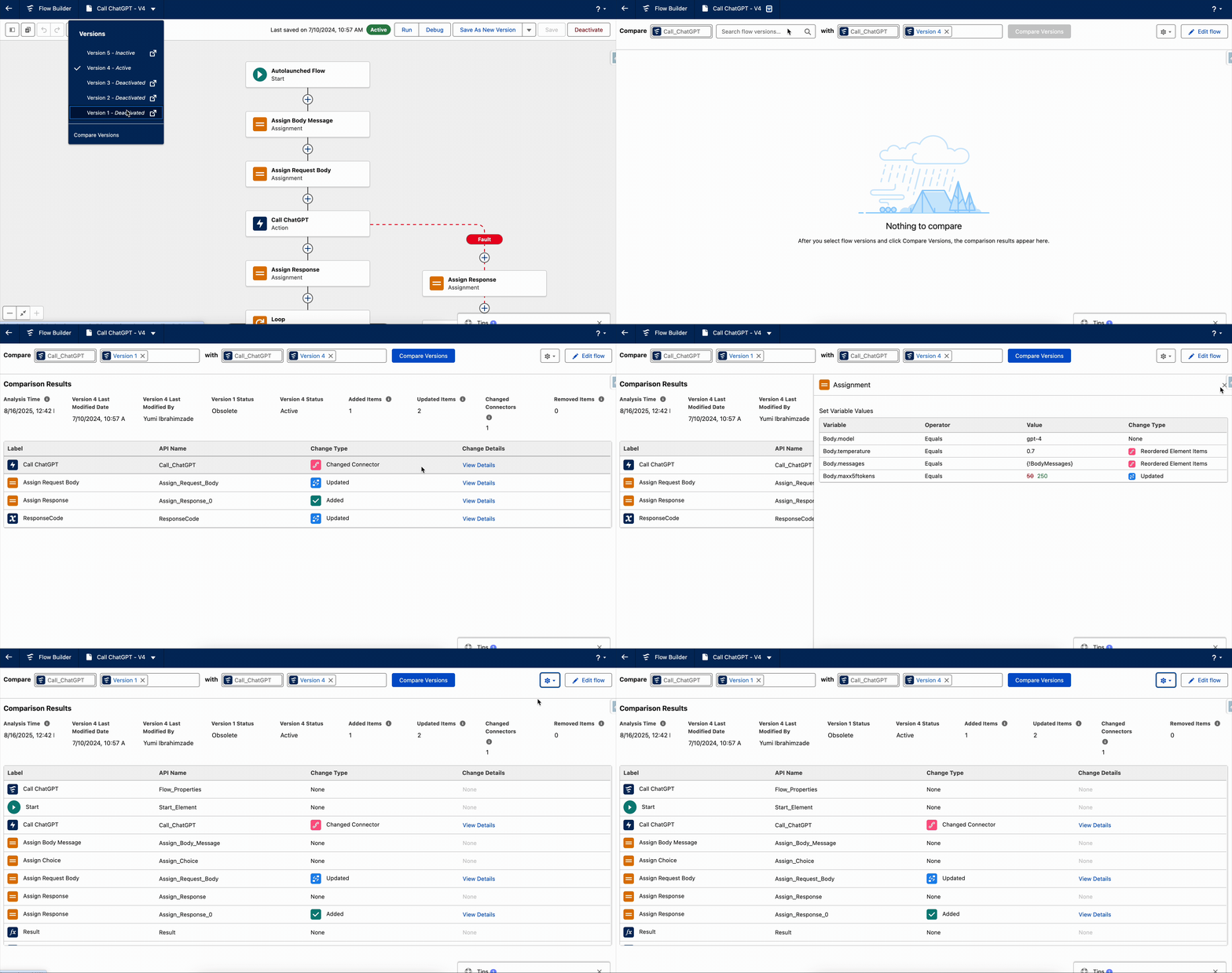
Salesforce is introducing a powerful new Flow Comparison tool. You can now compare two versions of the same Flow and view the differences in a clear tabular format, including element-level details.
5- Decision Logic Method
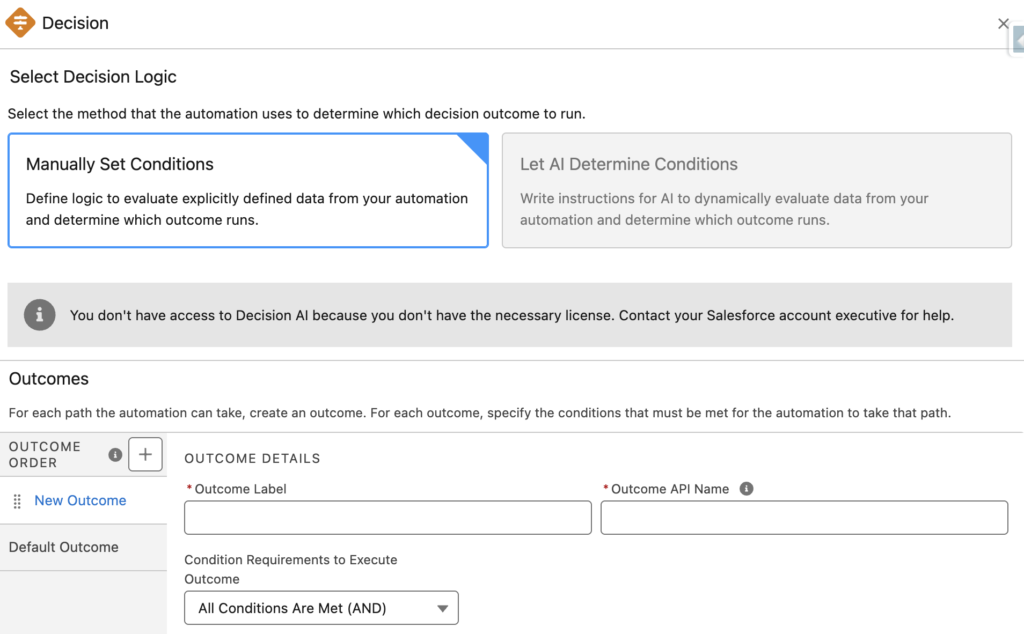
When configuring a Decision element, you can now choose how the automation decides which outcome to run.
- Manually Set Conditions – Define your own logic based on explicitly defined data. This is the default option and the same one we’ve always had.
- AI Determines Conditions (you need license) – Provide instructions for AI to dynamically evaluate your automation’s data and decide which outcome to run.
This new flexibility means you can stick with traditional logic or let AI handle dynamic decision-making for you.
6- Resizable Toolbar
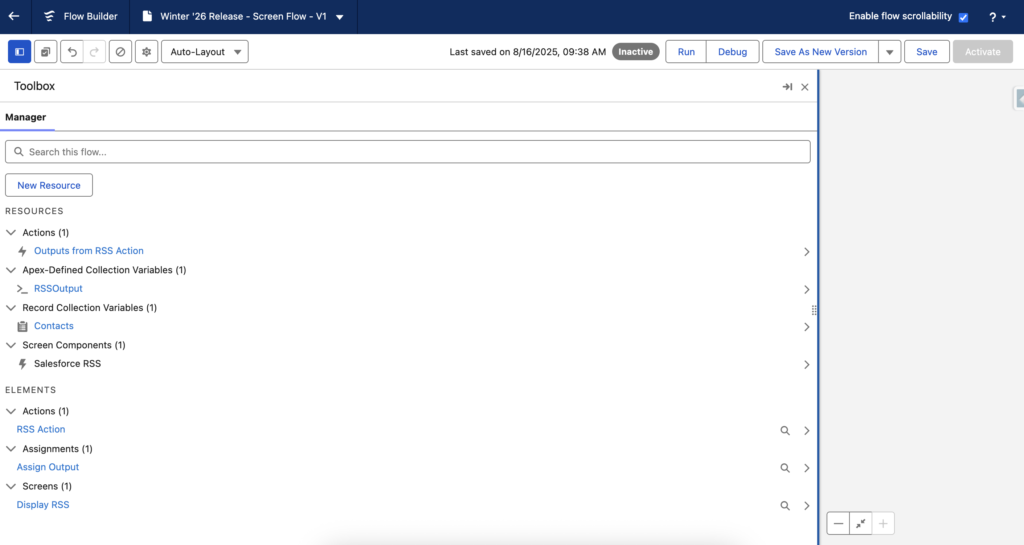
Starting with Winter ’26 release, you can resize the toolbar to make it wider for easier use.
The post New Flow Features of Winter ’26 Release appeared first on Salesforce Time.

